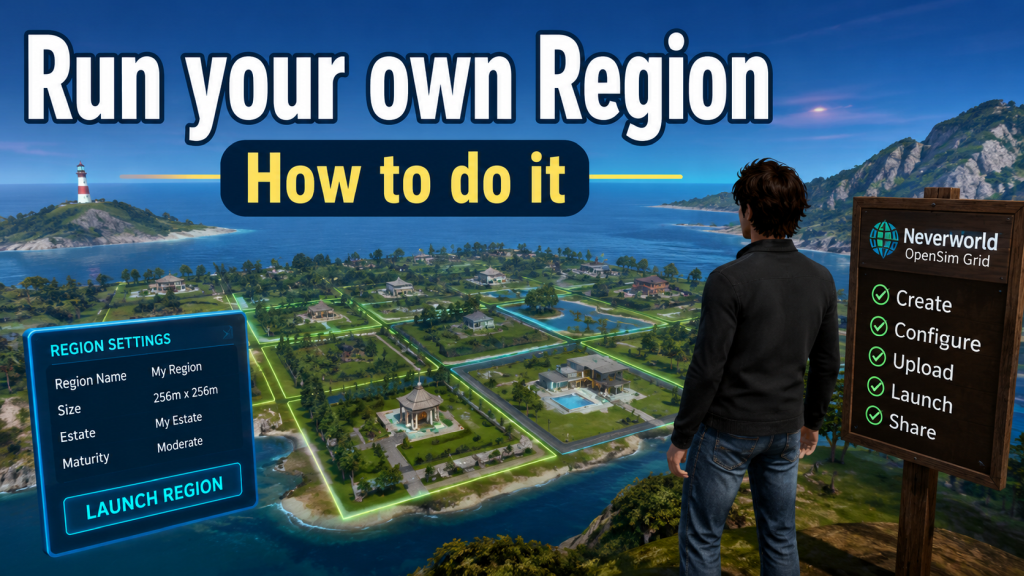
Setting Up Your Own Region on OSgrid
OSgrid is the largest and oldest of the public OpenSimulator worlds, running since 2007. It’s a non-profit, community-run grid, and its whole model is different from a commercial grid: you don’t rent land from OSgrid, you bring your own. You host a region on your own computer or server, connect it to the grid, and it becomes part of the shared world — appearing on the map alongside thousands of others. In OpenSim terms, that piece of land you host is called a region.
This article covers what a region is on OSgrid, the two practical ways to get one online, and a step-by-step walkthrough of hosting your own and connecting it to the grid.
What a “region” is
A region is a single square of virtual land with its own coordinates on the grid map, its own building capacity (measured in “prims,” the basic building blocks of OpenSim), and its own owner. A standard region is 256 x 256 meters. Larger “varregions” are simply several standard regions joined into one bigger square.
The key thing to understand about OSgrid is that every region is hosted by someone — usually the person who owns it. There’s no central landlord handing out parcels. When you run the region software and point it at OSgrid, your land joins the grid. When you shut it down, it goes offline. That freedom is the whole appeal, and it’s also the main thing you’re responsible for.
Two ways to get a region
Option 1: Host it yourself (free)
OSgrid provides a version of the OpenSimulator software already configured to connect to the grid. You download it, set up your region, and run it from your own PC, home server, or a rented VPS. There is no charge from OSgrid for this — connecting your land is free. Your costs, if any, are your own electricity and hardware, or a monthly VPS fee if you want something online around the clock.
This is the classic OSgrid experience and the rest of this article focuses on it.
Option 2: Pay a third-party OpenSim host
If you want your region online 24/7 but don’t want to run a server yourself, several independent companies offer paid OpenSim region hosting that can connect to OSgrid on your behalf. You pay a monthly fee, and they handle the server, uptime, and networking. This is a good middle ground if the technical side isn’t for you — but note these are separate businesses, not OSgrid itself, so shop around and check reviews.
Before you start: a few OSgrid essentials
A couple of things trip up newcomers, so get these straight first.
- You need an OSgrid account. Register a free avatar on osgrid.org before you do anything else. Your region will be owned by that avatar.
- Use a current build. OSgrid’s current simulator builds require .NET 8.x on Windows, Linux, or macOS. If you find old guides mentioning Mono or XEngine, treat them as obsolete.
- Networking is the hard part. Because you’re hosting a server, other people need to reach your computer over the internet. That means opening and forwarding ports, and knowing your public IP address. If your ISP blocks home servers, that’s a wall neither OSgrid nor anyone else can get around — a VPS is the workaround.
- Prefer IPv4 and a static local IP. OSgrid community docs warn that IPv6 can cause teleport and connection problems, so keep your setup on IPv4 where possible. A static LAN IP for the host machine keeps your port forwarding from breaking.
Step-by-step: hosting your region
- Register your avatar
Go to osgrid.org and create a free account. This gives you the avatar that will own your region and log into the world.
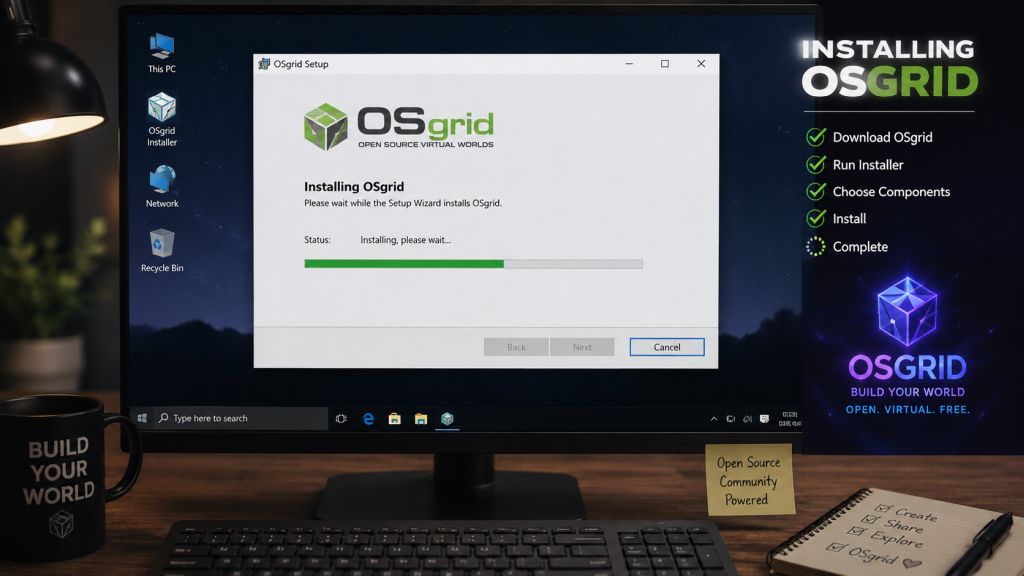
- Download the OSgrid-configured OpenSim
Grab the current OpenSimulator download from the OSgrid site. This version is preconfigured to connect regions to OSgrid, so you don’t have to wire up the grid connection by hand. Make sure you have the required .NET 8.x runtime installed for your operating system.
- Unzip it and find the bin folder
Extract the download into its own folder somewhere sensible (short paths like C:\OpenSim are handy on Windows). Inside you’ll find a folder called bin, which holds the important files.
- Pick an empty spot on the map
Open the OSgrid map (osgrid.org/map.php) and find open space, ideally away from other regions. Building right up against a dense block of regions makes your viewer and theirs constantly download each other’s land, which causes lag and console spam. There’s plenty of room, so spread out. Note the coordinates you want — they look like 11016,11017 (with a comma). Using an occupied or mistyped coordinate will crash the region at startup.
- Configure your region
In the bin folder there’s a Regions folder containing a Regions.ini (you may need to copy Regions.ini.example to Regions.ini). Open it and set your region’s details:
- Region name — whatever you like. One rule: don’t put “Plaza” in the name, as that’s reserved for OSgrid’s own community regions.
- Location — the map coordinates you chose, e.g. 11016,11017.
- Internal port — the UDP port for the region. The default is 9000. Each additional region you run needs its own port (9001, 9002, and so on).
- Internal IP address — often 0.0.0.0, but running on a proper static IP is better practice for a real server.
- External hostname — your public IP address or a stable DNS name, so the outside world can reach you.
- Set your external hostname in OpenSim.ini
Also in the bin folder, open OpenSim.ini and find the ExternalHostNameForLSL setting. Set it to your public IP or DNS name too. This keeps scripts and services pointing at the right address.
- Open and forward your ports
On your router, forward the ports OpenSim uses to your host machine’s local IP, and allow them through your firewall:
- UDP: your region port(s) — 9000 by default, one per region.
- TCP: the HTTP listener port used for services and caps, depending on your configuration.
If you’re behind NAT (most home setups are), this forwarding step is what makes your region reachable from outside. Skipping it is the number-one reason a region shows up on the map but nobody can enter.
- Run the simulator
Start OpenSim from the bin folder. On the first run it will ask you to set up the region’s estate and estate owner — the owner is your OSgrid avatar. Once it’s running and connected, your region registers itself on the grid.
- Connect your viewer and test
In a viewer like Firestorm, add OSgrid in the grid manager using the OSgrid login URI (commonly login.osgrid.org, or hg.osgrid.org for Hypergrid). Log in with your avatar, teleport to your region, and check that you can arrive and build. To shut down cleanly, type quit in the OpenSim console rather than just closing the window.
Troubleshooting
If your region shows on the map but you can’t get in, it’s almost always networking:
- Re-check port forwarding. Confirm your UDP region port(s) and TCP HTTP port are forwarded to the correct local IP and allowed through the firewall.
- Verify your external hostname. Make sure the public IP or DNS in Regions.ini and OpenSim.ini is actually current — home IPs change unless you have a static one or use a dynamic-DNS name.
- Stay on IPv4. If you’re seeing strange teleport or connect failures, an IPv6 path is a common culprit.
- Remove a loopback adapter if you added one. On some setups an old loopback adapter causes more problems than it solves; uninstalling it and restarting can fix teleport issues.
- Keep it online. If a region stays offline for more than two days, OSgrid removes it from the in-viewer Destination Guide, so plan for uptime if you want visitors to find you.
Which option is right for you?
Host it yourself if you want the full, free OSgrid experience, enjoy tinkering, and either have a machine you can leave running or a VPS for constant uptime. You keep total control and pay nothing to the grid.
Use a paid host if you want your land online around the clock without managing a server, and you’d rather pay a monthly fee than wrestle with routers and firewalls.
Either way, once your region is live and connected, the fun begins: terraform the land, lay out your builds, and let the rest of OSgrid come visit.
Details such as software versions, .NET requirements, login URIs, and hosting providers change over time. Before you begin, check the current information on the OSgrid website (osgrid.org), the OSgrid wiki, and the community forums for the latest instructions.












Leave a Reply